
Live Activity, a deeper look: Real-time schedule function developer
Hello! My name is Seong-Hoon Kim, and I am working as an iOS Product Engineer on the Trace team.
Most apps these days bombard users with push notifications to get their attention.
But we all know. Notifications are easily ignored, buried in the scroll, and don't do their job when you need them.
Conversely, Live Activity experiences that change delivery status in real time on the lock screen, such as Coupang Eats or Baedal Minjok, naturally capture the user's attention.
You can immediately see where you are and how much is left without having to open the app, and this flow makes the user experience even more seamless.
In fact, Apple also introduces Live Activity as a function optimized for providing ‘continuously changing information’ such as schedules, exercise, delivery, movement, and timers.
There was a similar request from a user in the Trace Discord community.
- “I want to see at a glance what I need to do today without having to open the app.”
- “I wish I could see the current schedule on the lock screen.”
So Trace began experimenting in earnest to see how this request could be addressed through Live Activity.
In this article, I will try to organize step by step what problems Trace encountered in the process of implementing a real-time schedule experience using Live Activity and how they were solved.
APNs
On iOS, all pushes are delivered through Apple Push Notification service (APNs). The push types sent by APNs can be broadly divided into three types.
- General notification (Alert Push)
- Banner/sound/vibration notification visible to user
- Silent Push (background push)
- Used to briefly wake up the app and execute background tasks without appearing on the screen.
- ActivityKit Push (Push Live Activity Updates)
- A dedicated type used to directly update the state of a Live Activity.
When I first started adding Live Activities, it was not clear how ActivityKit Push operates and what data structure it requires.
So naturally, I started with Silent Push, which I have been using a lot and am familiar with for background updates.
“Wouldn’t it be possible to quietly wake up the app and just update Live Activity?”
This was the easiest approach I could think of.
But after trying several times, I realized one important thing.
Live Activity is not a structure that simply sends an “update request,” but must send the entire data (contentState) that needs to be displayed on the screen at that time through a push.
In other words, the server had to directly calculate and send “what schedule is currently in progress and how much is left,” and it was difficult for the Silent Push infrastructure to reliably meet this demand.
Automatic update of Live Activity
The core idea was simple.
“Without waking up the app, let the server calculate the status of Live Activity and send it as a push.”
Because Trace uses Firebase instead of a separate server infrastructure,
This structure could be implemented relatively simply with just Firebase Functions + Firestore.
To update your Live Activity ‘as if in real time’, there are only two things you need:
- A place to calculate what schedule is currently in progress
- A pathway to push the results directly into Live Activity
📌 Entire data flow
iOS App
   └─ (토큰 + 일정 저장)
        ↓
Firestore
        ↓
Firebase Functions
   └─ 현재 이벤트 계산
        ↓
APNs – ActivityKit Push
   └─ contentState 전송
        ↓
Live Activity
   └─ UI 자동 업데이트
1) iOS
- Obtain a liveActivityToken automatically issued when creating a Live Activity
- Save time-based calendar list to Firestore
With this information alone, the server can know “on which devices Live Activity should be updated, and by what schedule.”
2) Firebase Functions
Functions run every minute and do the following:
- View currently valid device list in Firestore
- Select ‘events to be shown now’ based on the current time among the events of each device
- Put the event in contentState and send ActivityKit Push to liveActivityToken
// ActivityKit Push 전송
  const notification = new apn.Notification();
  notification.topic = "com.example.app.push-type.liveactivity";
  notification.pushType = "liveactivity";

  notification.event = "update";
  notification.contentState = {
    event: currentEventData,  // 지금 보여줄 이벤트
    timestamp: Date.now(),
    status: "Active"
  };

  await apnsProvider.send(notification, liveActivityToken);
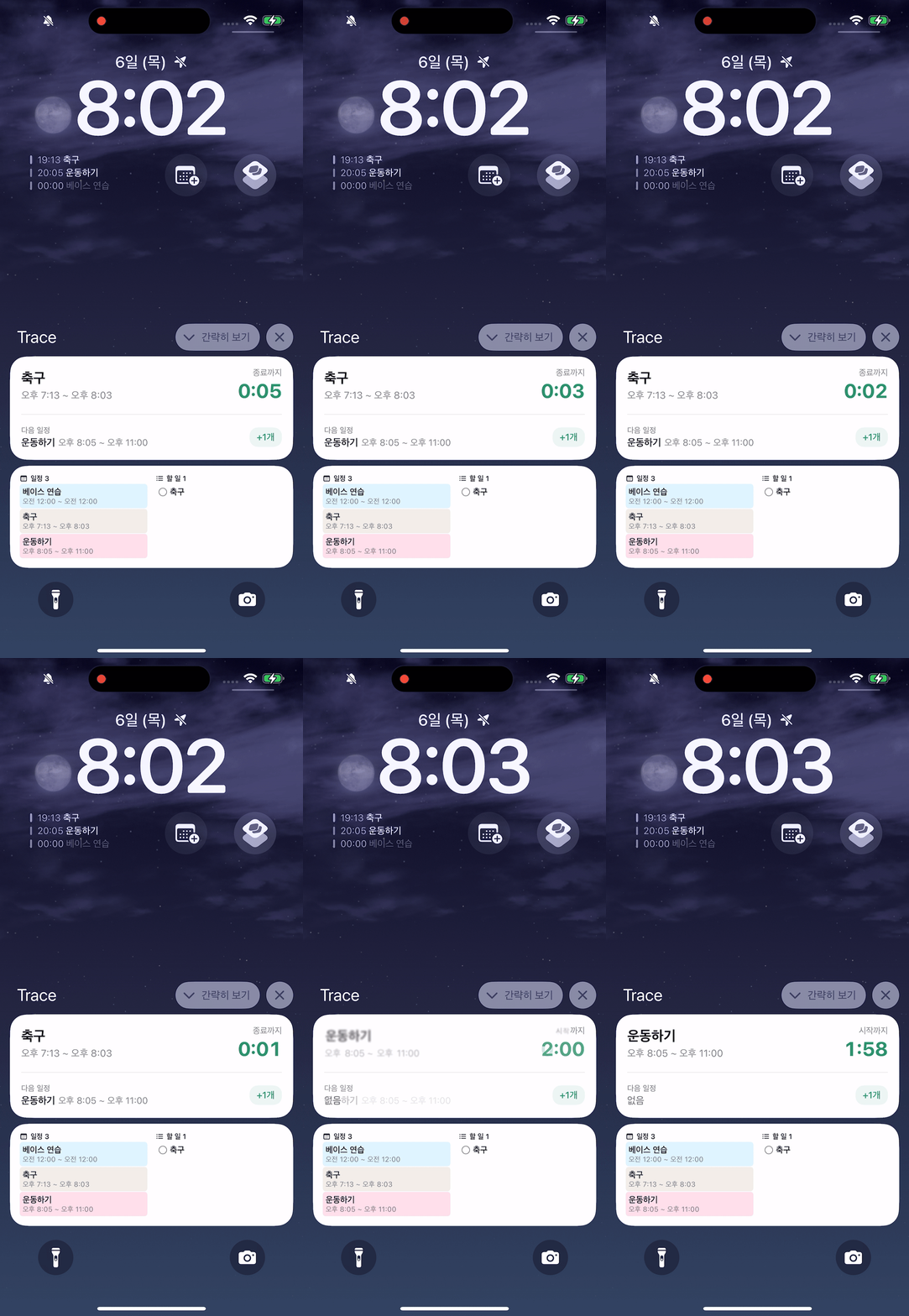
3) Operation video
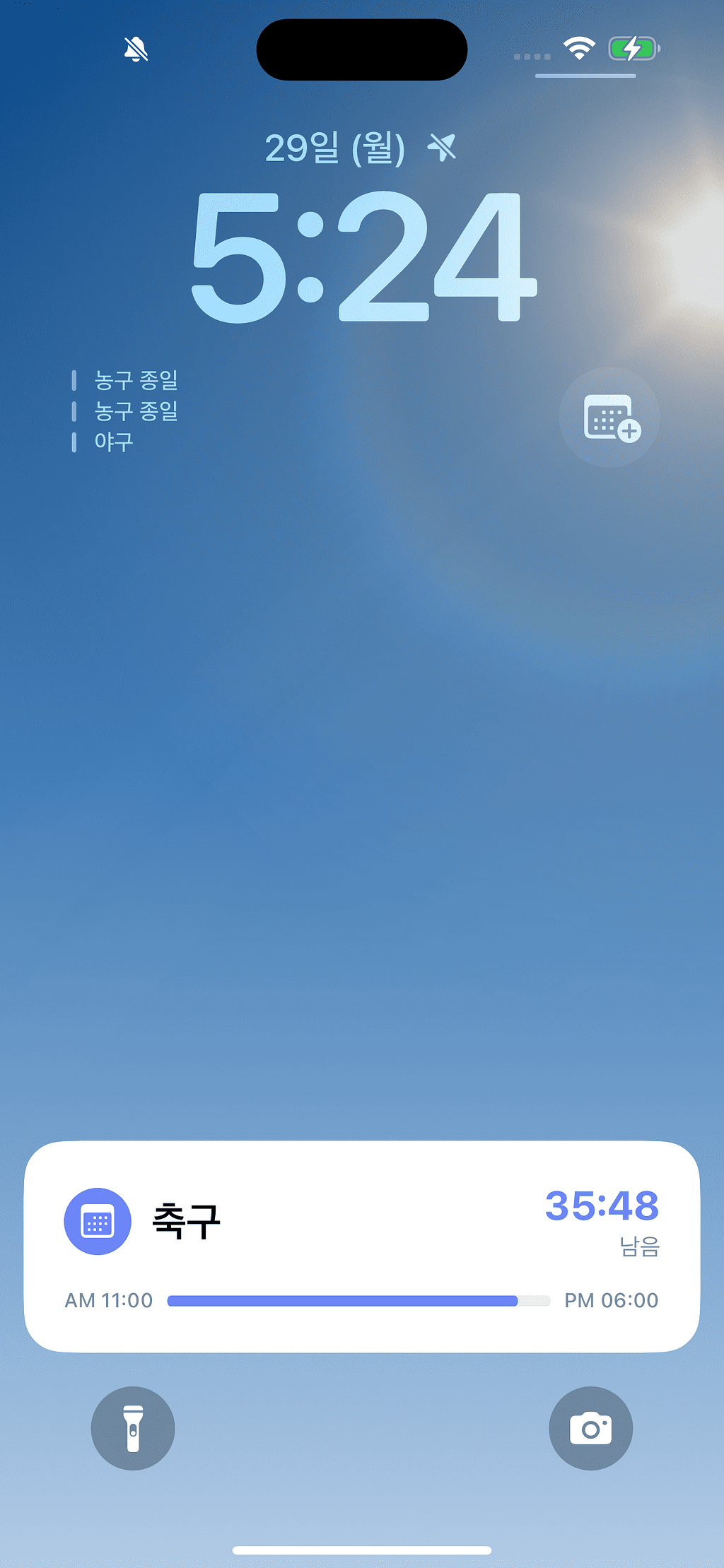
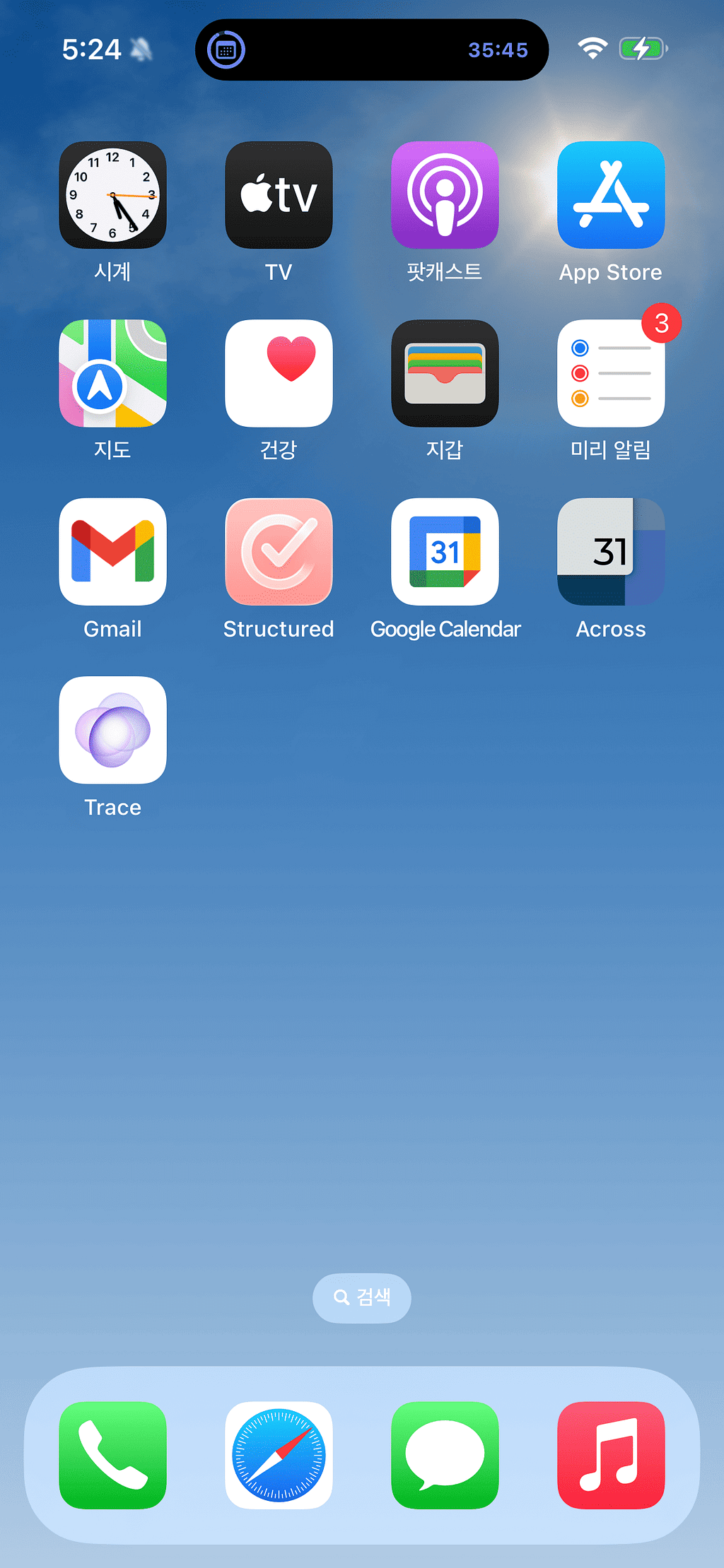
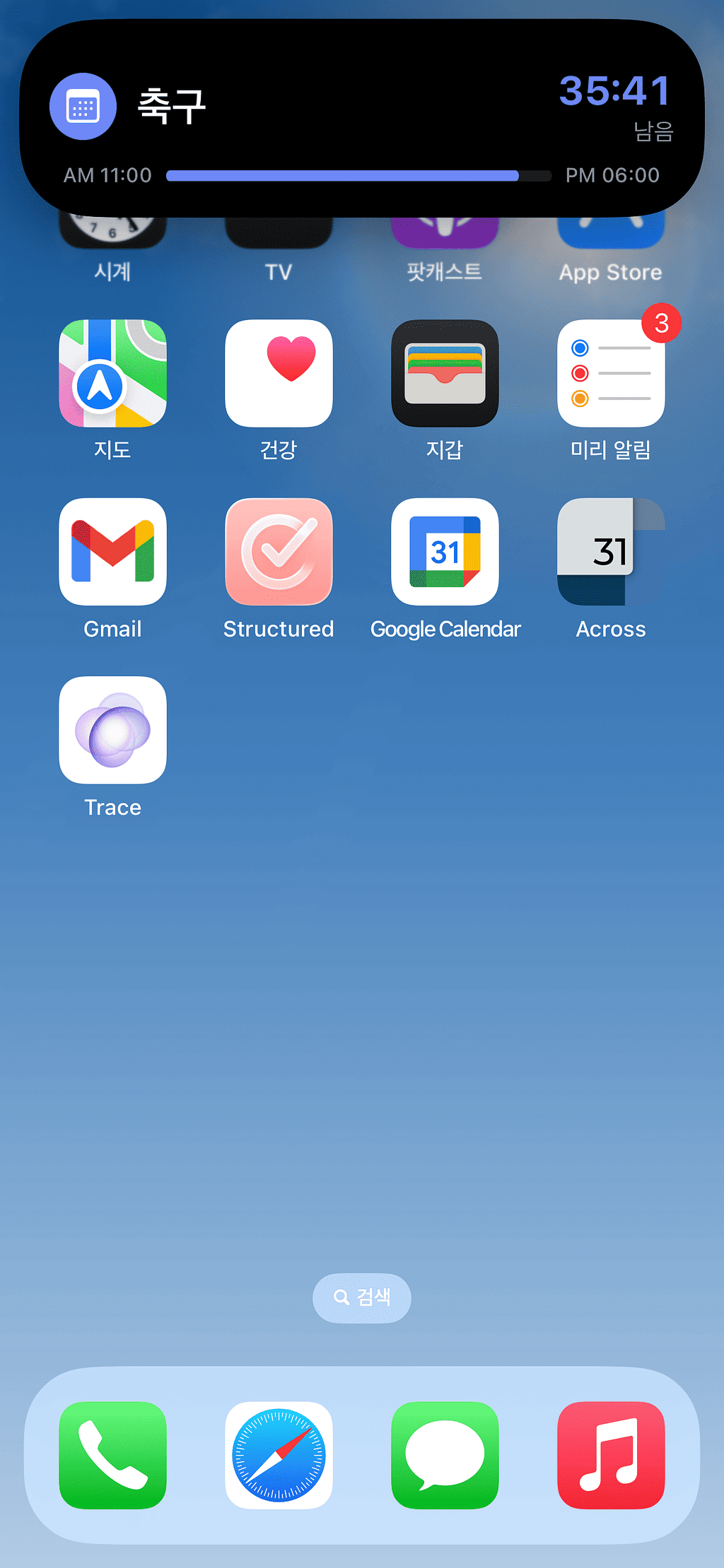
This shows how the entire flow works in practice: the server passes contentState to ActivityKit Push, and the Live Activity reflects it immediately.
Push to Start
The Live Activity structure so far has had one premise.
The thing about Live Activities is that they only start when the user directly enters the app and triggers it.
But we wanted to go one step further.
“Couldn’t Live Activity start automatically even without turning on the app?”
The function that makes this possible is pushToStartToken, introduced in iOS 17.2. pushToStartToken allows you to remotely start a Live Activity on a server.
This means that even if the user doesn't open the app:
- When an important event starts soon
- Just before the task begins
- Even when the user hasn't turned on the app at all during the day.
You can create an experience that automatically displays Live Activity on the lock screen.
For reference, Apple's documentation explains that you can receive a token from pushToStartTokenUpdates even without creating an Activity. However, on iOS 17.x this behavior was quite unstable. There have been reports that several developers have experienced the same problem, and Apple is also known to be aware of the issue.
For this reason, Trace adopted a method of securing tokens by briefly creating a ‘dummy activity’ that is invisible to the user when running the app. (This behavior is said to have been improved in iOS 18.)
📌 Entire data flow
iOS App
   └─ (pushToStartToken + 시작 시각 저장)
        ↓
Firestore
        ↓
Firebase Functions
   └─ 시작 시점 도달 여부 확인
        ↓
APNs – Push to Start
   └─ attributes + contentState 전송
        ↓
Live Activity
   └─ 앱을 열지 않아도 자동 생성
Push to Start Once you get the tokens, the overall structure is very simple.
1) iOS
- Through dummy activity when running the apppushToStartTokenacquisition
- Save pushToStartToken and schedule start time to Firestore
2) Firebase Functions
Functions run every minute and do the following:
- Check “Is now the time to start Live Activity?”
- When the point is reached, APNspushToStartTokenSend a Push to Start request to . At this time, the attributes and contentState that will be initially displayed in the Live Activity are also passed.
// Push to Start - Activity 생성용 Push
  notification.event = "start";  // "update"가 아닌 "start"
  notification.attributes = {    // 생성 시에만 필요
    startTime: Date.now()
  };
  notification.contentState = {
    title: "러닝 30분",
    eventDate: 1733458200,
    status: "active"
  };
In other words, like update push, the server calculates all the data to be displayed on the screen and sends it all at once.
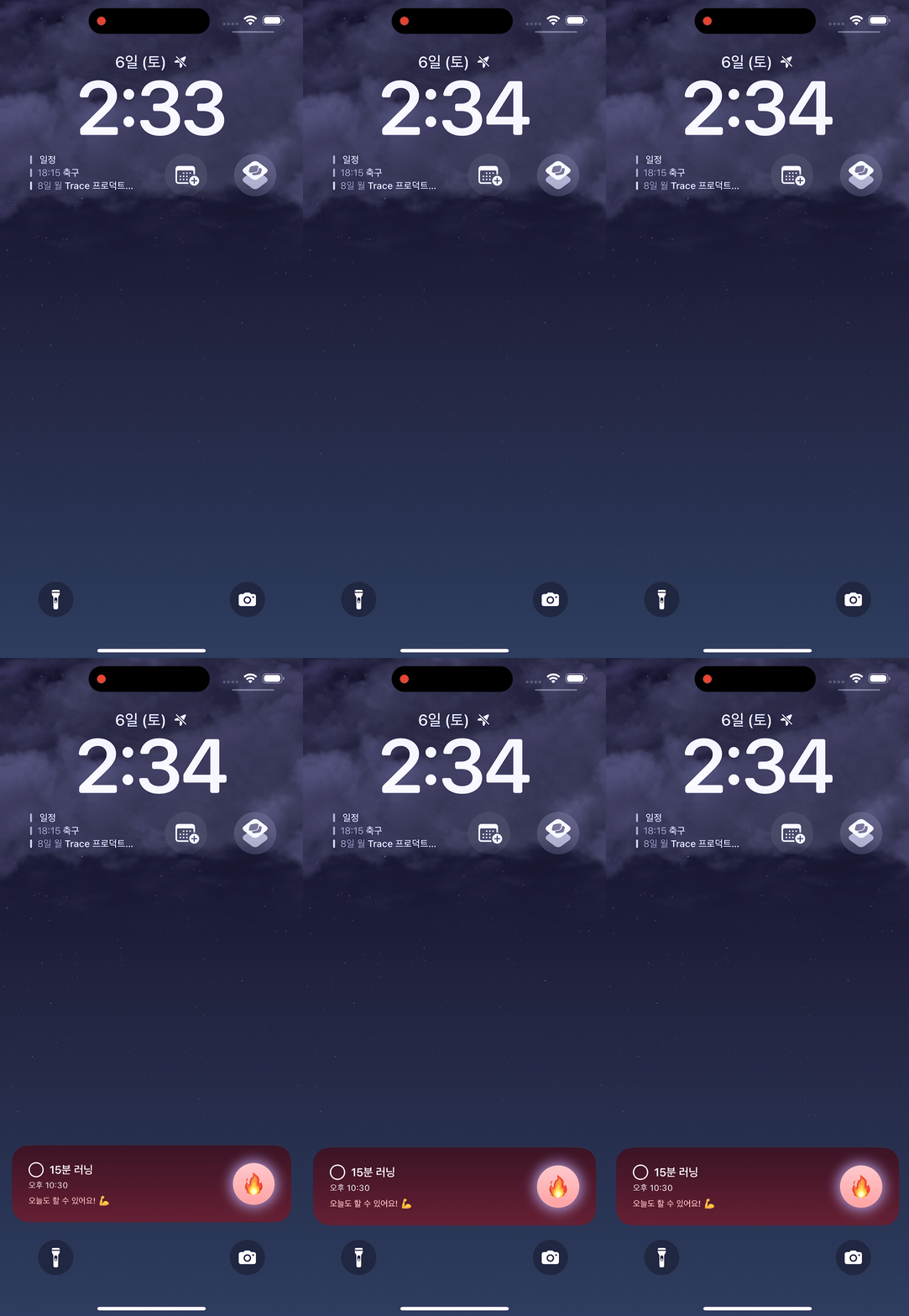
3) Operation video
You can check the process by which the server remotely creates a Live Activity using pushToStartToken and sends the attributes and contentState to be initially displayed so that it automatically appears on the lock screen.
finish
Since introducing Live Activity, Trace's key indicators have also changed.
In particular, Day0 → Day1 retention increased by about 10%, showing a clear improvement in the initial experience.
Users gave feedback saying, “It’s convenient to be able to check things right from the lock screen without having to open the app,” and “I like being able to complete my to-do tasks right away in Live Activity.”
Trace will continue to deeply explore the capabilities of AI and the iOS ecosystem and create experiences that naturally permeate users' daily lives.
The process of building this Live Activity was a very interesting challenge for the team, and it was an experience where I personally gained a lot of insight. I hope this article will be of some help or reference to those who are thinking about a similar problem.
thank you
reference material
Starting and updating Live Activities with ActivityKit. push notifications—Apple Developer
Update Live Activities with push notifications.—.WWWDC23